Using the Planning Tab to Organize Your Information
One of the many benefits of an IronClad Family membership is the ability to store sensitive information in fully encrypted, zero-knowledge vaults. This makes your information available to the people you choose, on the date or life event you select, even if they do not know it is waiting for them.
To make that possible, the Planning Tab is designed to guide you through all the important assets, accounts, and documents your family may need. Think of it as your “staging area” where you collect and organize information before assigning it to vaults for delivery.
Step 1: Log In to Your Account
- Log in to your IronClad Family account using your email and password.
Step 2: Open the Planning Tab
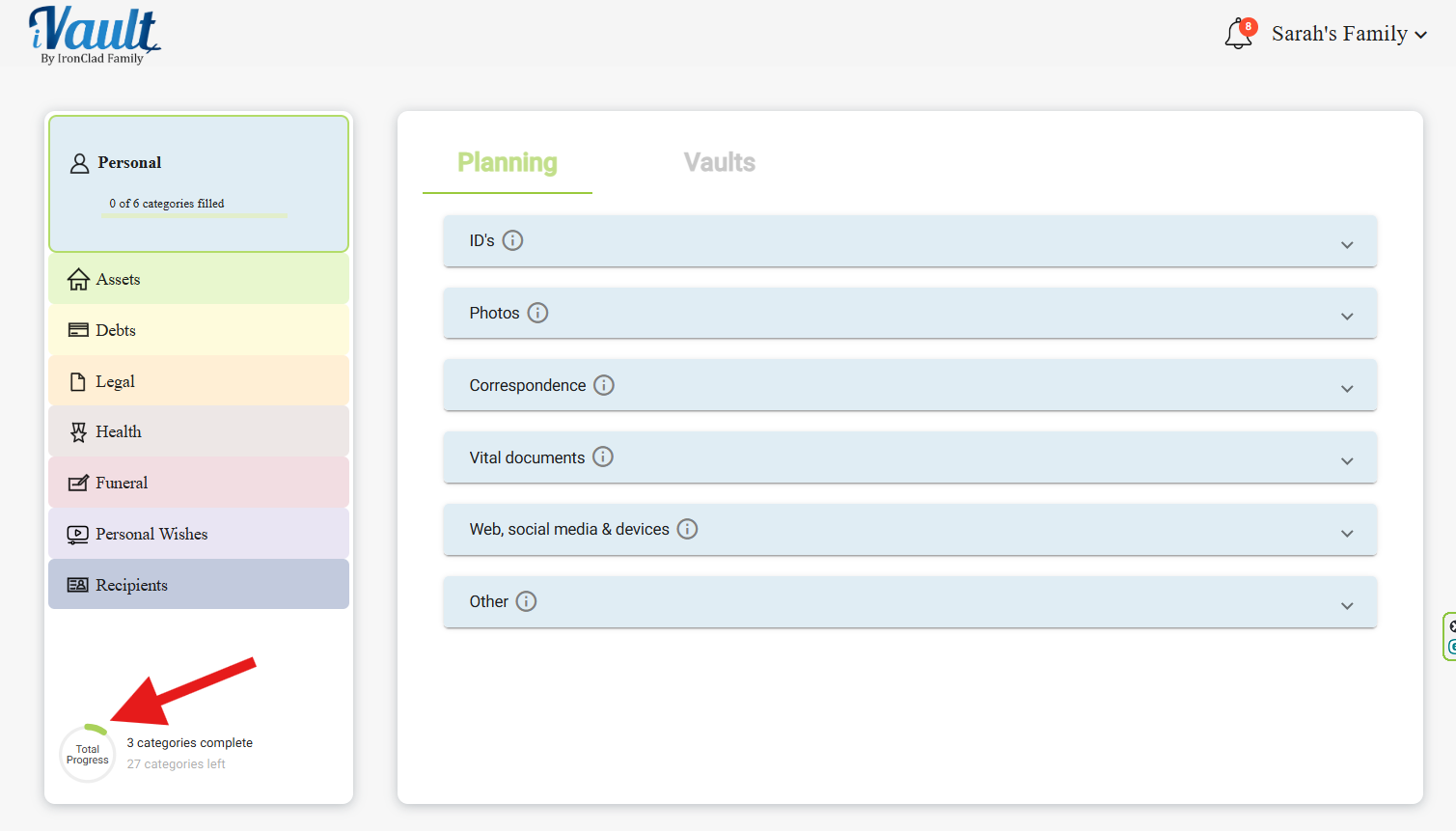
- From the home screen, click on the Planning tab in the left pane.
The Planning Tab is divided into simple categories that reflect real-life areas your family may need help with, such as personal information, finances, benefits, estate plans, online accounts, and more.
Step 3: Complete Each Category
- In the left pane, click each category (for example, Personal Information, Bank Accounts, Estate Plans, and so on).
- Upload files, add notes, and enter the details requested in each section.
- As you complete items, the progress indicator at the bottom left will update, showing what is done and what still needs attention.
What Happens After You Finish Planning?
Once your information is gathered and organized in the Planning Tab, you can:
- Create or update vaults for different types of information or different recipients.
- Assign each document or note to a secure vault for encrypted storage and delivery.
- Set delivery conditions such as a specific date or life event.
For next steps on creating vaults and assigning your information, see:
Was this article helpful?
That’s Great!
Thank you for your feedback
Sorry! We couldn't be helpful
Thank you for your feedback
Feedback sent
We appreciate your effort and will try to fix the article