Scheduling Delivery of a Vault
IronClad Family makes it easy to choose exactly who should receive each type of information in your Digital Vault. Everything in the vault is encrypted using information known only to you and the recipient. You can deliver a vault on a specific date or automatically upon death or incapacitation.
If you choose “Death or Incapacitation,” IronClad Family will periodically reach out and perform additional verification to confirm whether a vault needs to be delivered according to your instructions.
Our Promise to You — The Integrity Lock
Once a vault is delivered, it becomes a permanent, locked record of exactly what you intended to share. No one — not a family member, not an advisor, not IronClad Family — can alter it after delivery.
This is not a restriction. It is a promise. Your wishes, your documents, your instructions are preserved exactly as you chose them — so they can never be questioned or tampered with. We are on your side.
If anything changes in your life, simply create a new vault. Your account includes unlimited vaults.
Before You Deliver — Checklist
- Review all documents to ensure they are up to date.
- Confirm that each document is placed in the correct vault.
- Double-check your delivery method (date or death/incapacitation).
- Verify your recipients (up to 4 per vault) and their email addresses.
- Decide whether to share a preview with recipients before delivery.
- Remember: once delivered, the vault is locked permanently.
How to Schedule Delivery
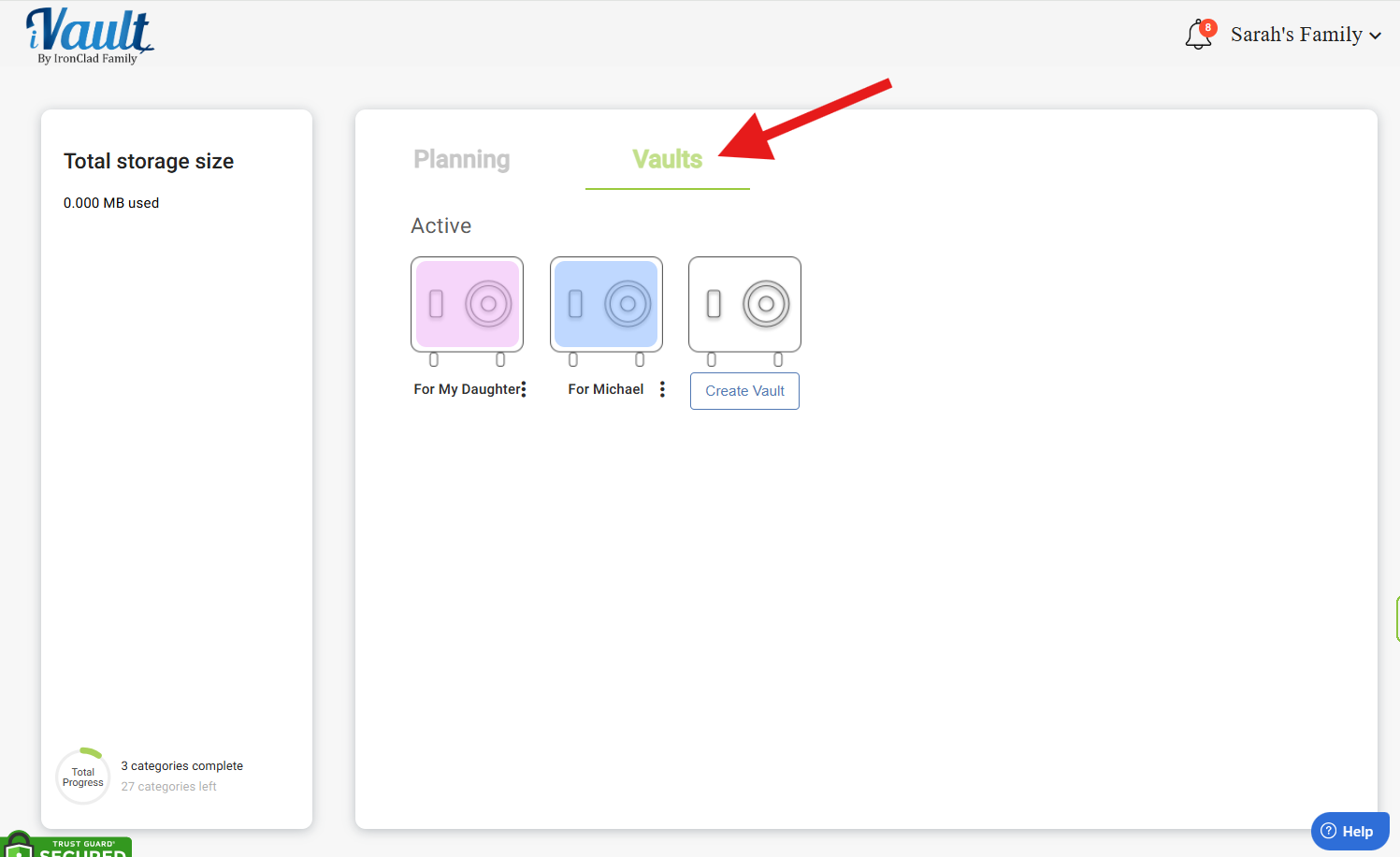
- Click on the Vaults tab.
- Open an existing vault or click Create Vault.
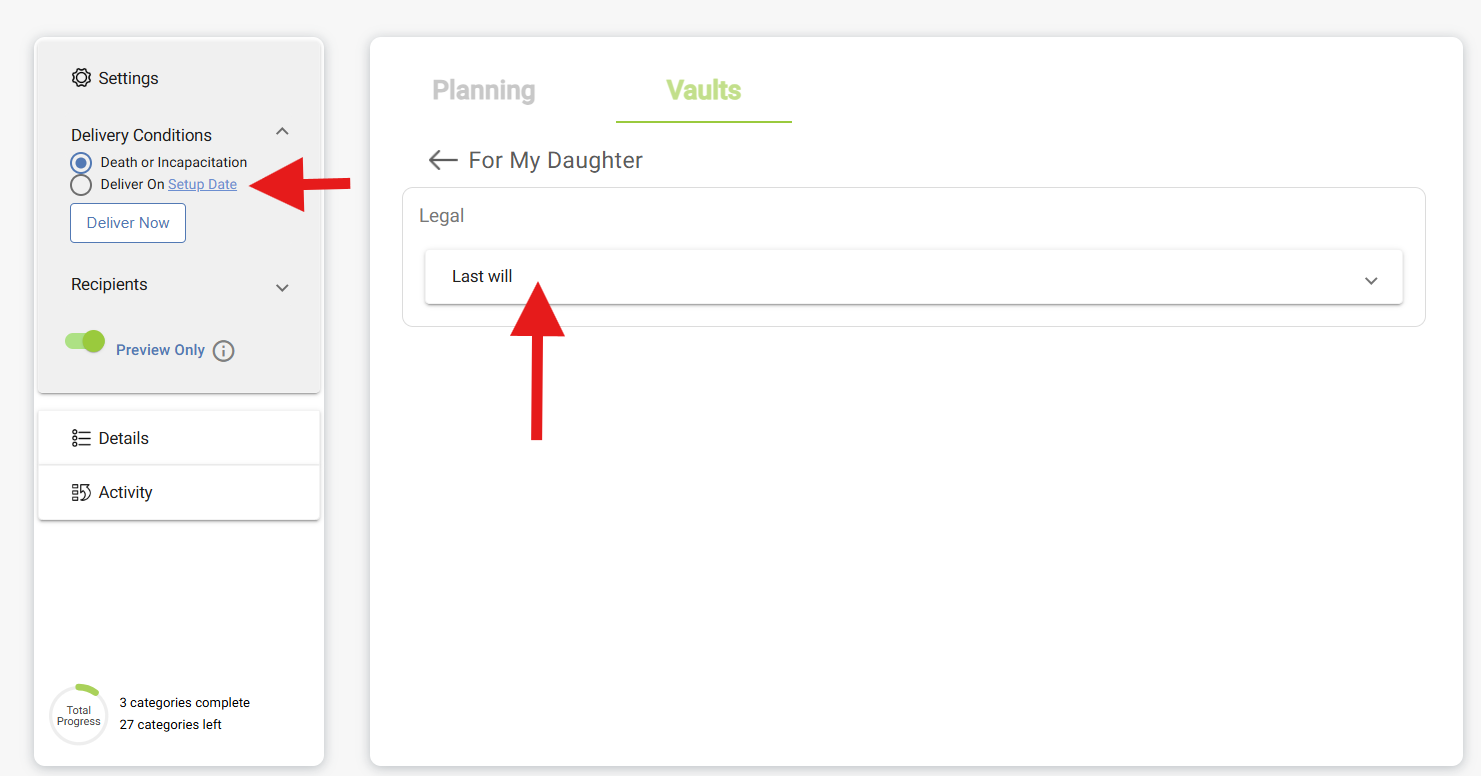
- In the left pane, click Set Delivery Timing.
1 — Set Delivery Timing
Choose how your vault will be delivered:
- Death or Incapacitation – The default and most common option
- Deliver on a Specific Date – e.g., a child’s birthday or a future milestone
- Deliver Now – Immediate release


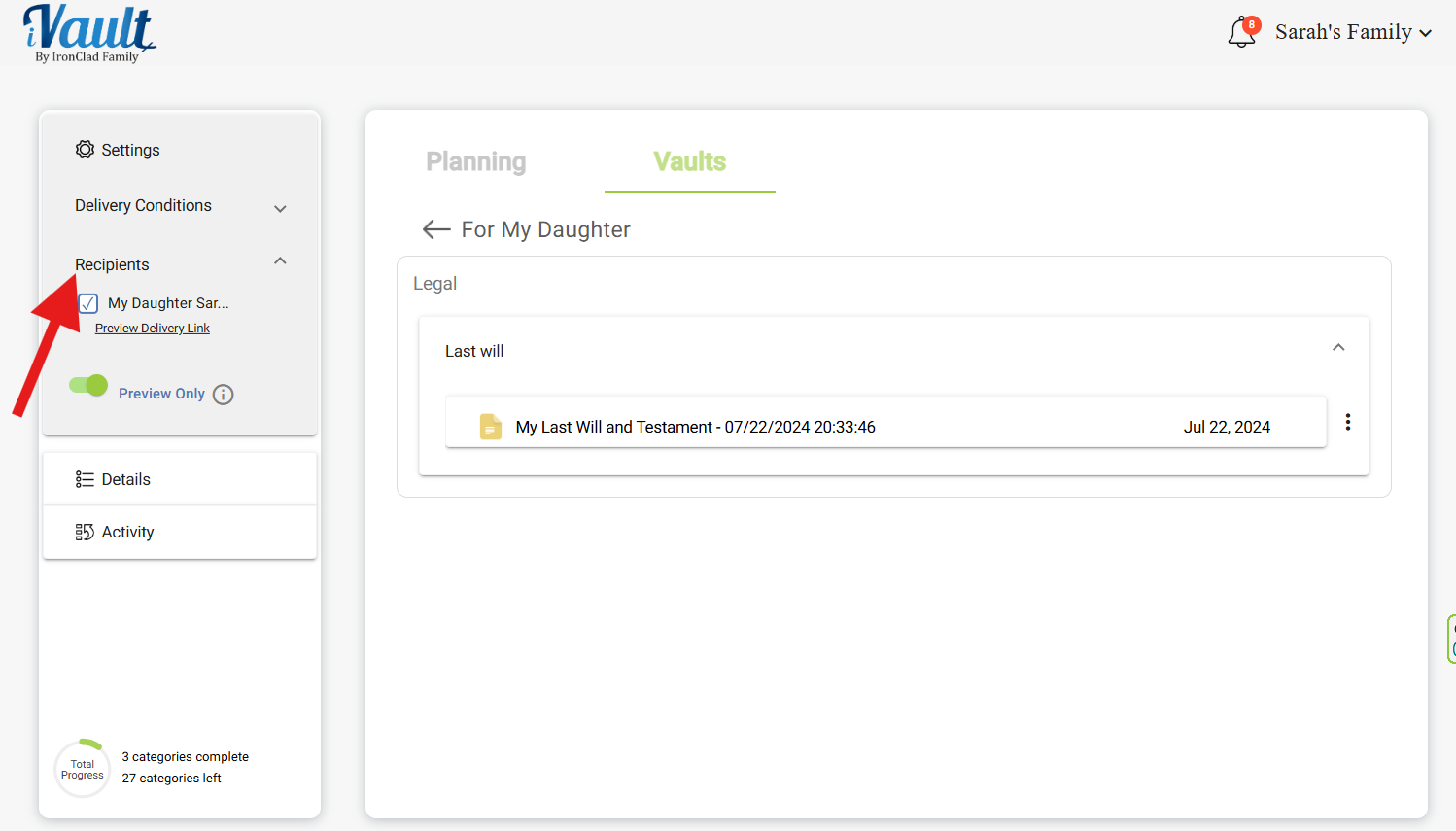
2 — Assign Recipients
In the left pane, click Recipients to assign who receives the vault. Each vault supports up to 4 recipients. For families with more than 4 people, create separate vaults for different recipient groups.
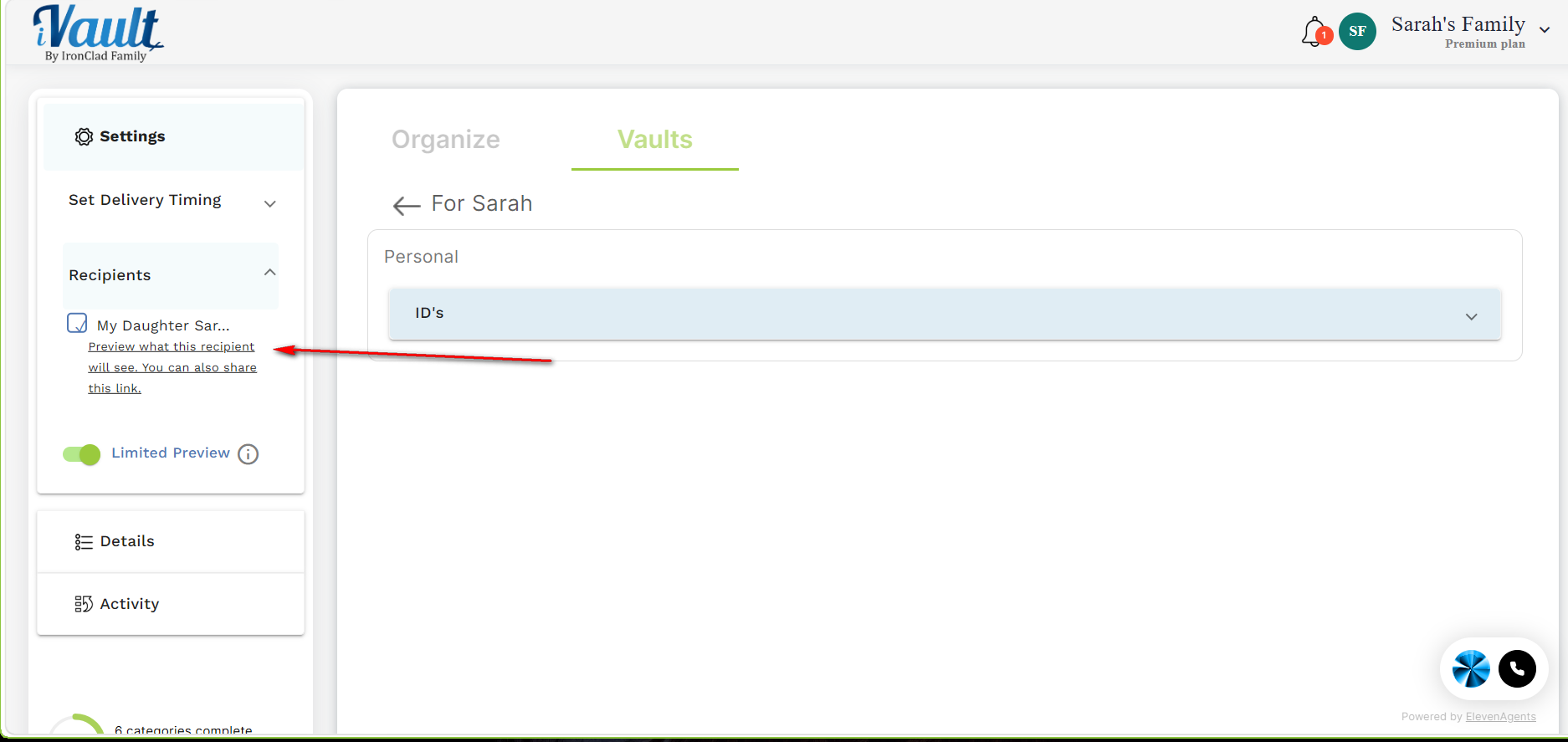
3 — Share a Preview Before Delivery (Optional)
Before formally delivering, you can share a preview link with your recipients so they know what is coming. Each recipient has their own unique preview link — there is no general “Sharing” section.
How to find and share the preview link:
- Click the Vaults tab and open your vault.
- In the left pane under Settings, click Recipients.
- Select the specific recipient you want to share with.
- Their unique preview delivery link is shown there — copy and send it to them directly.
- Use the Limited Preview toggle next to their name to control what they see:
- Limited Preview ON (toggle green) – recipient sees file names only, cannot open files
- Limited Preview OFF – recipient can view the actual file contents
What your recipient experiences when they click the link:
- They are challenged to answer the passphrases you set when you created their recipient profile.
- Once they correctly answer the required number of passphrases, they gain access.
- They see either file names only or full contents based on your Limited Preview toggle setting.
- They are always read-only — they cannot change, upload, or delete anything.
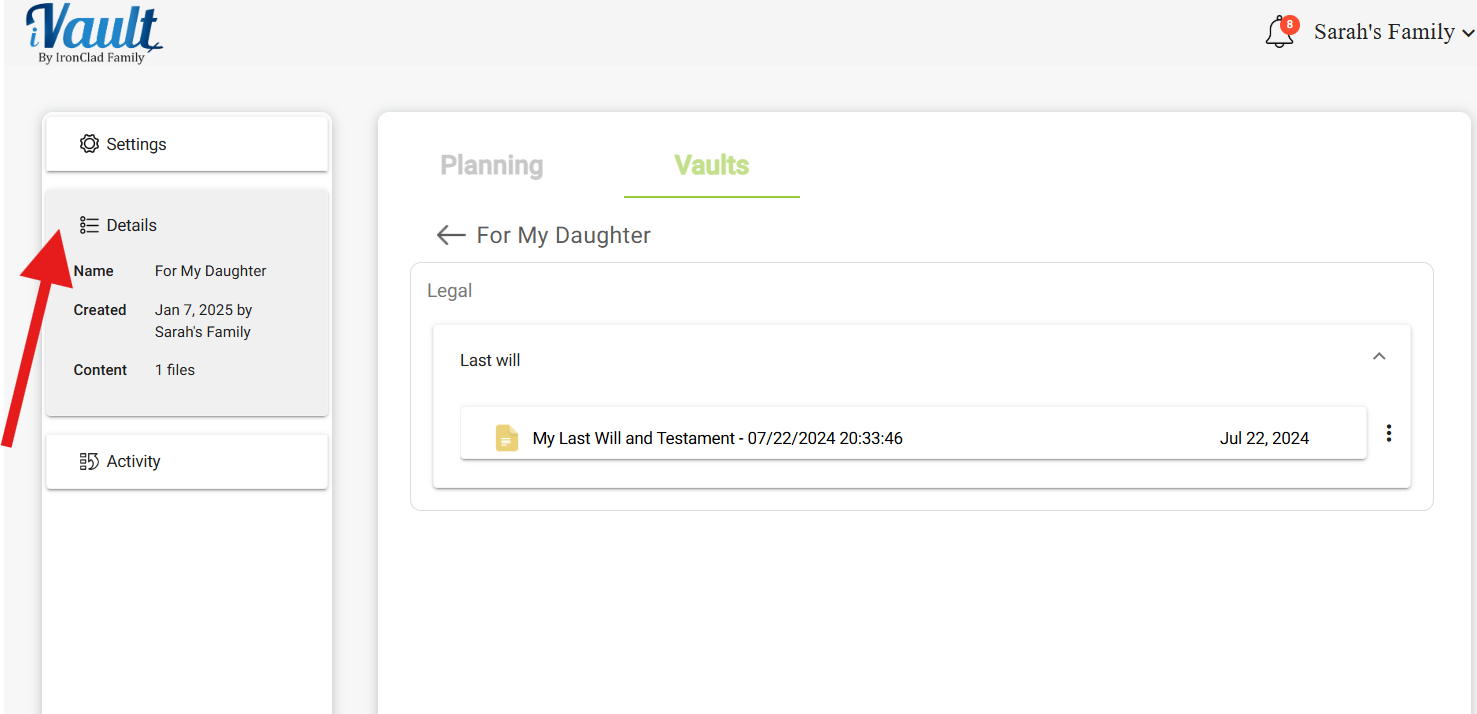
4 — Details
The Details section shows the vault name, date created, and all content included. Review this before completing delivery.
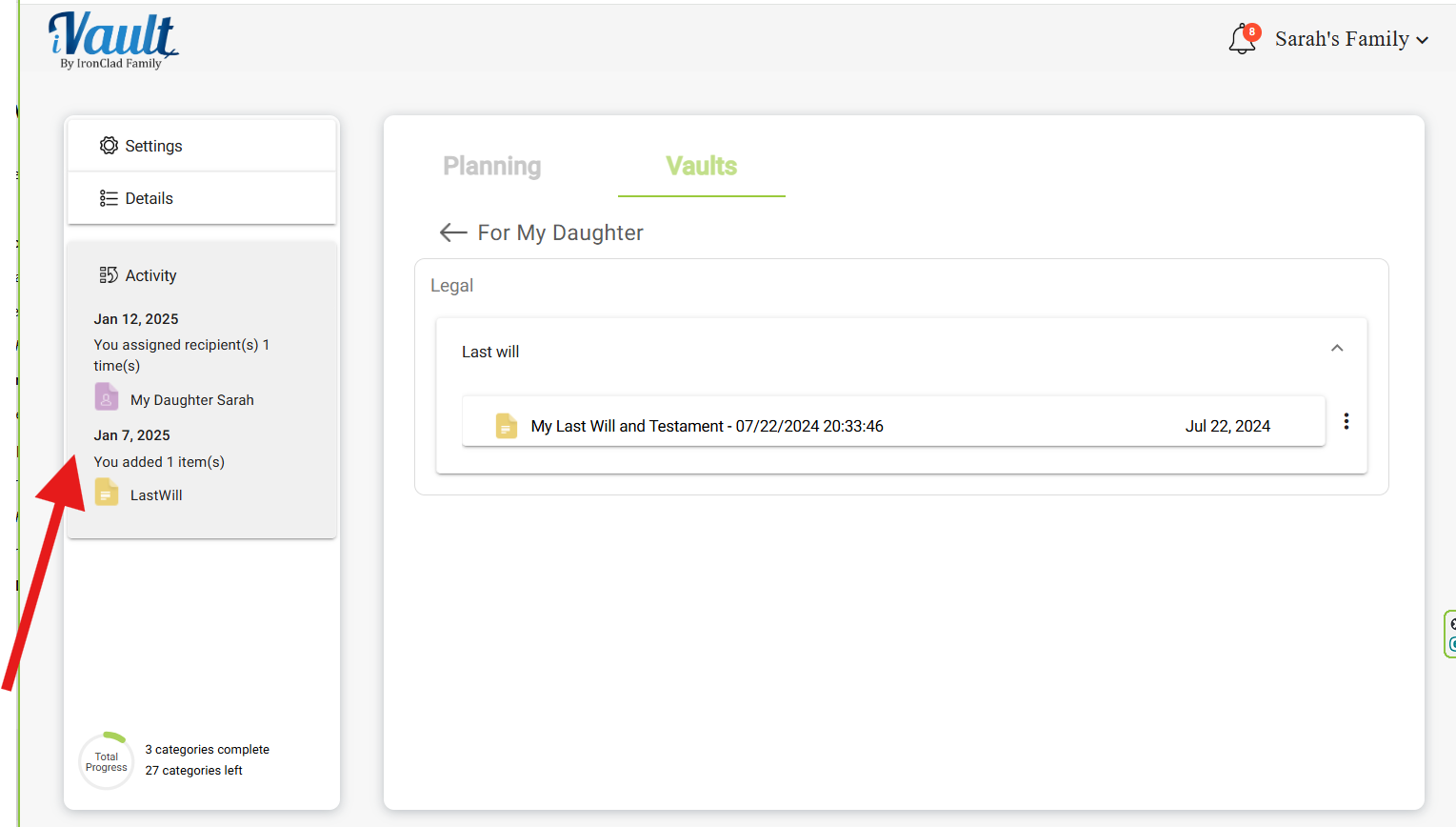
5 — Activity
The Activity section shows a full log of recent edits and actions taken on your vault — useful for verifying everything is correct before delivery.
What Your Recipients Will See After Delivery
- Before delivery: they access their unique preview link, pass the passphrase challenge, then see file names only or full content based on your Limited Preview setting.
- After delivery: they have full, permanent, read-only access to all vault content.
- Every vault includes a time-stamped record of delivery.
- Recipients cannot modify, delete, or upload anything — before or after delivery.
Family Best Practices
- Create separate vaults for different purposes: legal docs, personal messages, insurance, etc.
- Use the preview link to let recipients see what is coming without exposing document contents prematurely.
- Review your vaults once or twice a year.
- Use Deliver Now only when the vault is fully ready.
- Create a new vault whenever major events occur — marriage, relocation, new will, new insurance policy.
- Remember: each vault supports up to 4 recipients. Use multiple vaults for larger families.
Related Articles:
Was this article helpful?
That’s Great!
Thank you for your feedback
Sorry! We couldn't be helpful
Thank you for your feedback
Feedback sent
We appreciate your effort and will try to fix the article