Two-Factor Authentication adds a second step to login, reducing the risk of account takeover. If you are storing or managing client documentation, enabling 2FA should be treated as mandatory.
Recommended option: Use an Authenticator App (Microsoft Authenticator or Google Authenticator) instead of SMS whenever possible. App-based codes are more resistant to SIM-swap and SMS interception.
Step-by-step
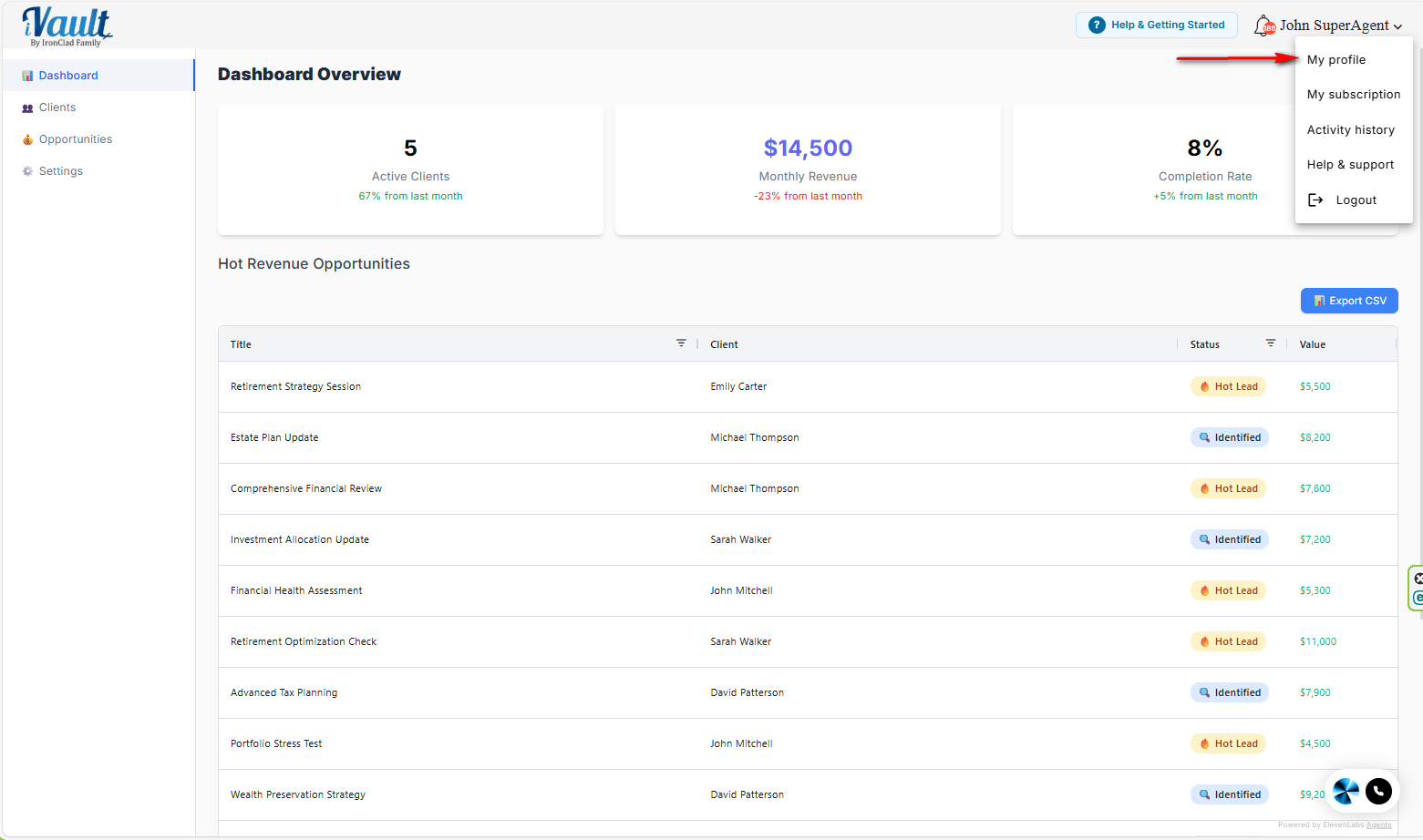
- Click your name/profile menu in the upper-right corner.
- Select My Profile.
- Scroll to the security section and select Enable Two-Factor Authentication.
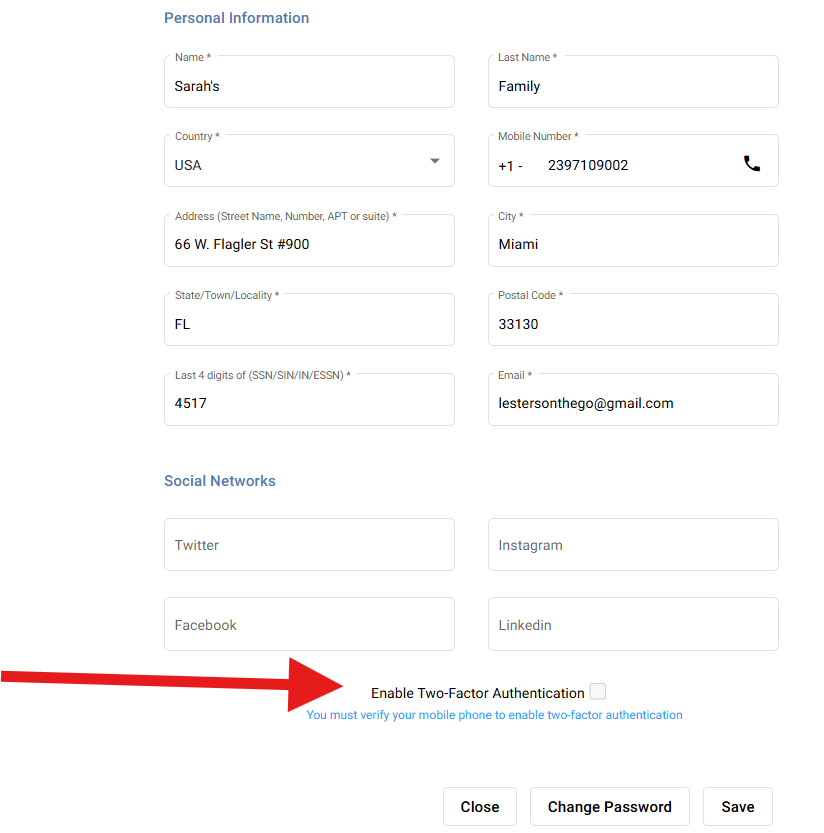
- Choose your preferred authentication method and click Save.
Option A: SMS (text message)
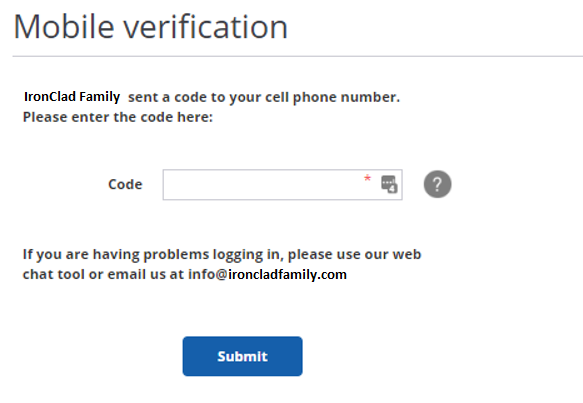
- A code is sent to the phone number listed in your profile.
- Enter the code and click Submit to confirm.

Option B: Authenticator App (recommended)
- Open your authenticator app (Google Authenticator or Microsoft Authenticator).
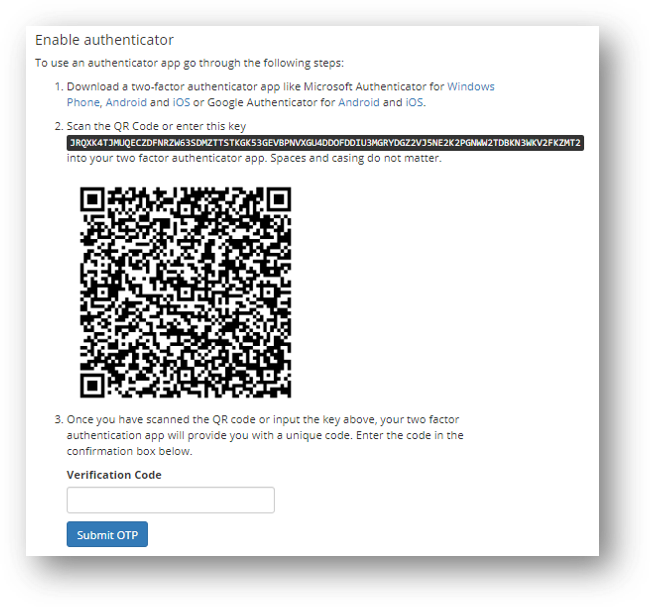
- Scan the QR code shown on screen.
- Enter the one-time passcode (OTP) from your app and click Submit OTP.


OR

For SMS – a code will be sent to the phone number in your profile via text message. You must enter the code and click Submit to proceed.
For App Authenticator – You can use the application of your choice, such as Microsoft Authenticator or Google Authenticator, to scan a QR code. You must enter the code provided by the authentication app and click Submit OTP to proceed.
The next time you login to IronClad Family, you will be prompted to authenticate based on the authenticator option you chose.
Confirm it worked
- You should see a confirmation message that your profile/security settings were updated.
- Next time you sign in, you will be prompted for your 2FA code.
Troubleshooting
- SMS code not received: confirm the phone number in your profile is correct, then retry.
- Authenticator code rejected: ensure your phone time is set to automatic, then retry (clock drift causes failures).
- Lost access to authenticator app: contact support. You may be required to verify identity before 2FA can be reset.
Was this article helpful?
That’s Great!
Thank you for your feedback
Sorry! We couldn't be helpful
Thank you for your feedback
Feedback sent
We appreciate your effort and will try to fix the article