Use this process when you want to rotate your password, suspect compromise, or your firm requires periodic password changes. Password hygiene matters because this account can access client vault activity and documentation.
Best practice: Use a password manager and generate a unique password you do not reuse anywhere else.
Step-by-step
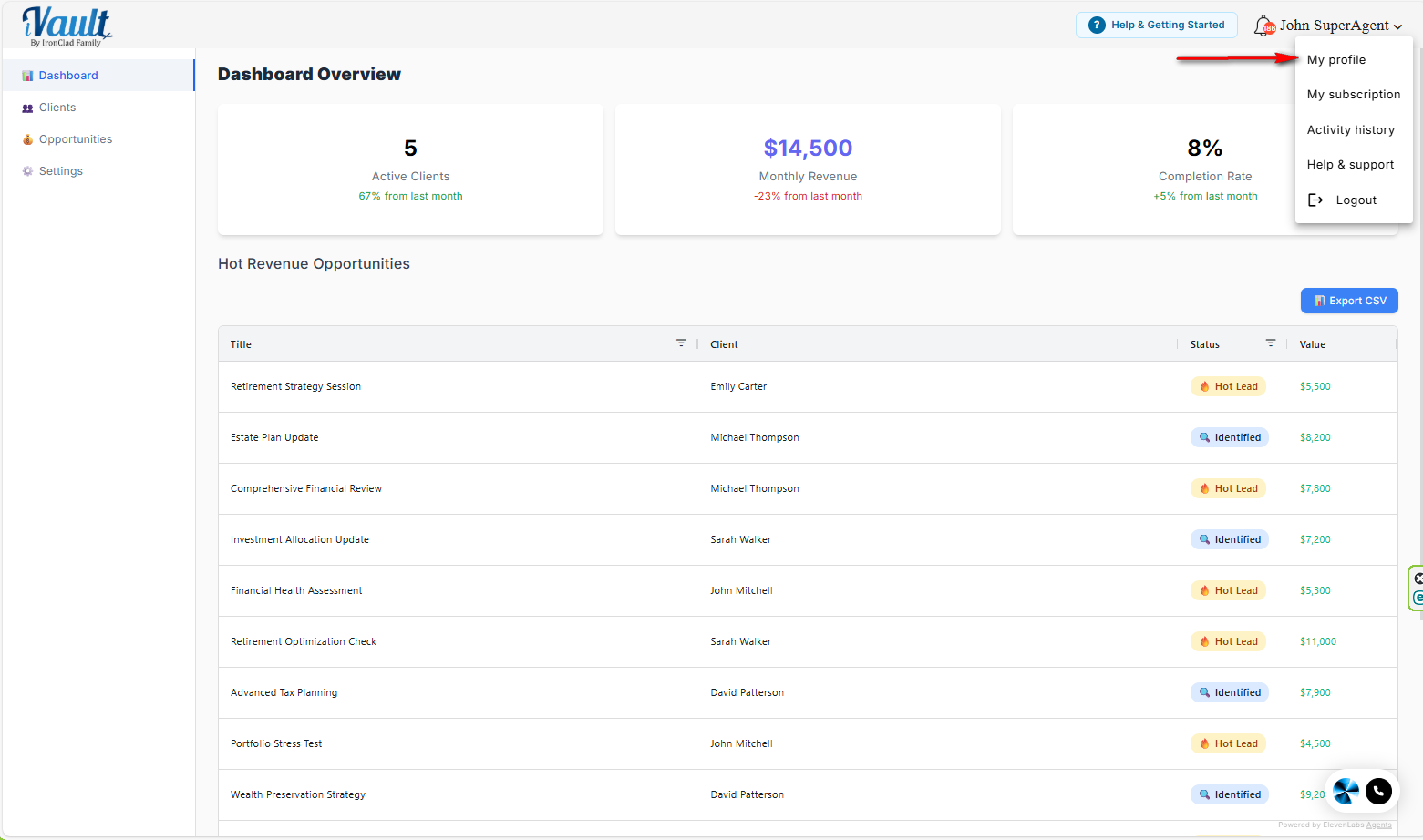
- Click your name/profile menu in the upper-right corner.
- Select My Profile.
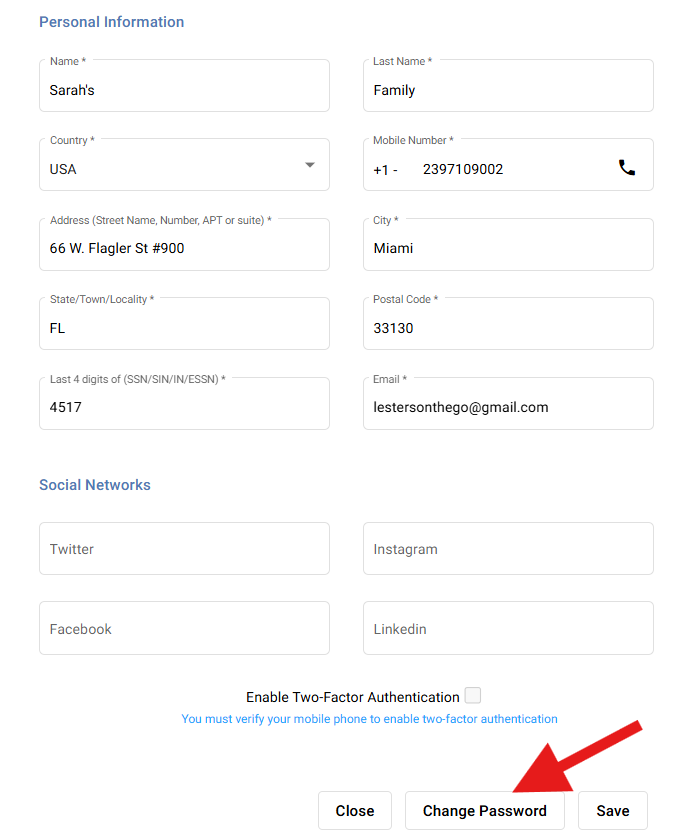
- Click Change Password.
Enter and submit your new password
- Enter your current password.
- Enter your new password. (
- Use a strong password with a mix of letters, numbers, and symbols)
- Re-enter your new password to confirm.
- Complete the captcha (if prompted).
- Click Submit.
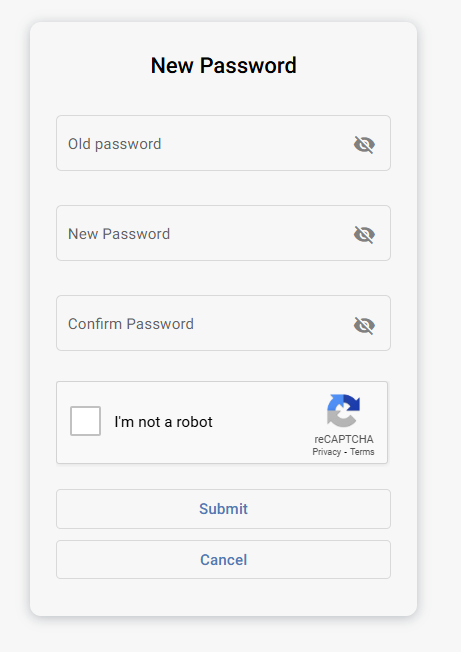
Tip: If you see an “eye” icon in the password fields, you can toggle visibility to confirm you typed it correctly. (Do this only in a private setting.)
Common issues
- Captcha won’t validate: refresh the page and retry. Avoid VPNs or aggressive ad-blockers if validation fails repeatedly.
- New password rejected: use a longer password with a mix of letters, numbers, and symbols.
- Forgot your current password: use the “Forgot password” flow on the login screen (if available) or contact support.
Was this article helpful?
That’s Great!
Thank you for your feedback
Sorry! We couldn't be helpful
Thank you for your feedback
Feedback sent
We appreciate your effort and will try to fix the article