This guide covers both first-time profile setup and ongoing profile updates. Keeping your advisor profile accurate is not cosmetic, it directly impacts onboarding flow, security (verification and 2FA), and supportability.
Recommended order for new advisors: Verify email → complete profile → verify phone → enable 2FA → then add real clients. Doing this out of order is how advisors get locked out or fail verification mid-onboarding.
Part A: First-time Profile Setup (New Advisors)
Step 1: Verify your email
- Check your inbox for a verification email from IronClad Family / iVaultX.
- Click the verification link to activate your account.
- If you do not see it, check spam/junk and search for “IronClad” or “iVault”.
Step 2: Sign in and open your Profile
- Log in with your new credentials.
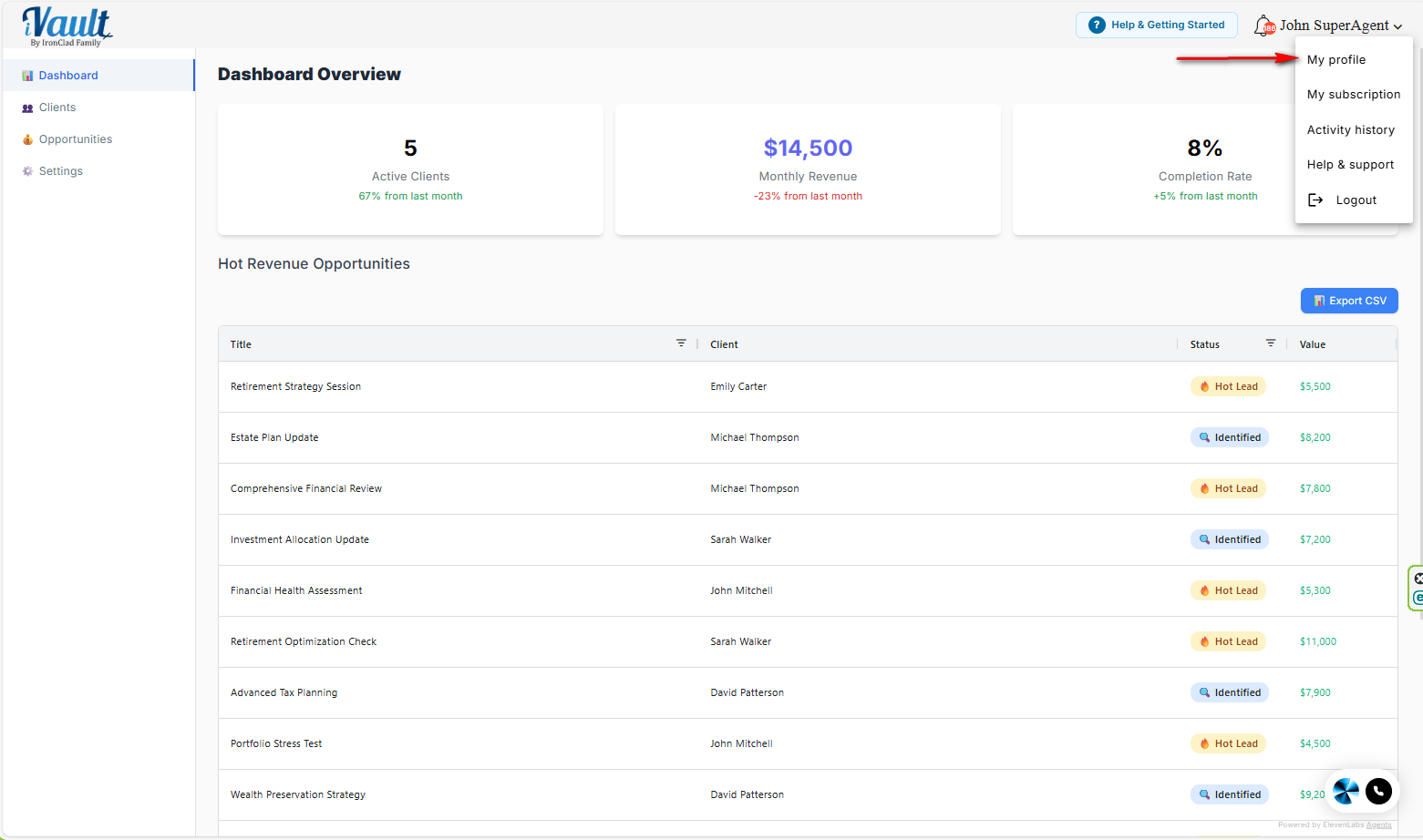
- Open the menu in the upper-right corner (your name/profile).
- Select My Profile.
Step 3: Complete your advisor identity fields
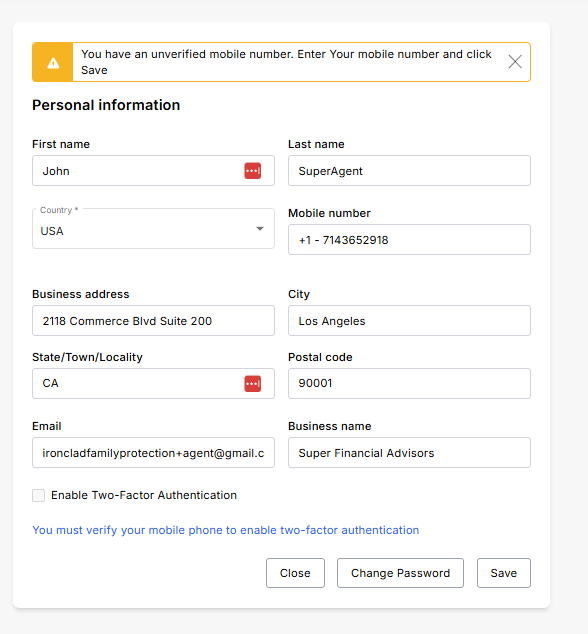
Enter your identity information exactly how clients and your firm recognize you. This reduces confusion and avoids avoidable onboarding issues.
- Name: Use your professional name (avoid nicknames).
- Business / Firm Name: Use your official branding.
- Business Address: Use the address your firm uses for client communications (if applicable).
Step 4: Add your address and phone number
- Enter your full address (street, city, state, ZIP, country).
- Add your phone number.
- Continue to phone verification.
Common mistake: Using a phone number you cannot access right now. If you enter the wrong number, you will fail verification and delay onboarding.
Step 5: Verify your phone
- Enter the verification code sent to your phone.
- Click Submit to complete verification.
Step 6: Enable Two-Factor Authentication (highly recommended)
If you manage client documents, enabling 2FA should be treated as mandatory. It is the simplest way to reduce account takeover risk.
Setup Advisor Two Factor Authentication
Part B: Updating Your Profile Later (Edits & Maintenance)
Update your profile any time your firm identity, phone number, or contact details change. If you use SMS-based verification or SMS 2FA, your phone number must be correct.
How to edit your profile
- Open the profile menu (upper-right corner).
- Select My Profile.
- Edit the fields you want to update.
- Click Save, then Close.
What must always stay accurate
- Email address: Account recovery and support depend on this.
- Phone number: Verification and SMS-based 2FA depend on this.
- Firm name / business identity: Prevents client confusion and keeps records consistent.
Important: If you change your phone number and you use SMS-based 2FA, confirm you can still log in successfully afterward. If you lose access to your old phone and did not switch 2FA methods, you can lock yourself out.
Related Security Actions (Keep Separate)
Troubleshooting
- No verification email: Check spam/junk, then request again or contact support.
- SMS code not received: Confirm the phone number is correct, wait 1–2 minutes, and retry.
- Changes do not save: Refresh the page and try again. If it persists, try another browser or disable aggressive extensions.
- Locked out after changes: Contact support and include your account email and what changed.
Was this article helpful?
That’s Great!
Thank you for your feedback
Sorry! We couldn't be helpful
Thank you for your feedback
Feedback sent
We appreciate your effort and will try to fix the article