Delivery settings control how and when a vault's contents are released to recipients. This is a critical step. If delivery isn't set correctly — or if the vault has no records assigned to it — it won't function the way the client expects.
Each vault is encrypted, carries its own recipients, and delivers on a specific date or on a trigger such as the death or incapacitation of the vault owner.
Delivery should match the client's legal and family reality. If something's unclear, stop and confirm rather than guessing.
Before you configure delivery
- Confirm the vault's records are actually assigned to it — not just created. A vault delivers what's assigned to it, and nothing else.
- Confirm recipients are correct and current (up to 4 per vault).
- Confirm the core records are present: estate documents, insurance, IDs, key property and financial records.
- Confirm the client understands what “delivery” means in plain language: who gets access, under what conditions, and how.
• At onboarding completion
• At annual reviews
• After major life events (marriage, divorce, death, relocation)
Our promise — the Integrity Lock
Once a vault is delivered, it becomes a permanent, locked record of exactly what the client intended to share. No one — not the advisor, not the client, not IronClad Family — can alter it after delivery.
This is not a restriction. It is a promise. The client's wishes, their documents, their instructions are preserved exactly as they chose them — so they can never be questioned or tampered with. We are on their side.
If the client needs to update something later, edit the record before delivery, or create a new vault after. Client accounts include unlimited vaults.
The vault also preserves the audit trail, recording exactly what was delivered and when.
Sharing vs. delivering a vault
Sharing (before delivery)
- Recipients can preview the vault via a non-expiring preview link
- You choose whether they see file names only or full contents
- The vault can still be edited
- Sharing can be revoked at any time
- Recipients are read-only — they cannot change anything
Delivery (final + permanently locked)
- Sends a final, uneditable version of the vault
- The vault becomes a permanent record of the client's wishes
- No one can change anything after this point
Pre-delivery checklist
- ✔ Records assigned to this vault and confirmed in the Details tab
- ✔ Each record's fields and attachment reviewed with the client
- ✔ Recipients selected and email addresses confirmed (max 4 per vault)
- ✔ Delivery method chosen (date, event trigger, or manual)
- ✔ Preview settings configured correctly
- ✔ Client understands the vault will be permanently locked after delivery — and why that protects them
Step 1 — Go to Clients
- Click the 3 dots next to the client's name
- Click Manage vaults
- Go to the Vaults tab in your client dashboard
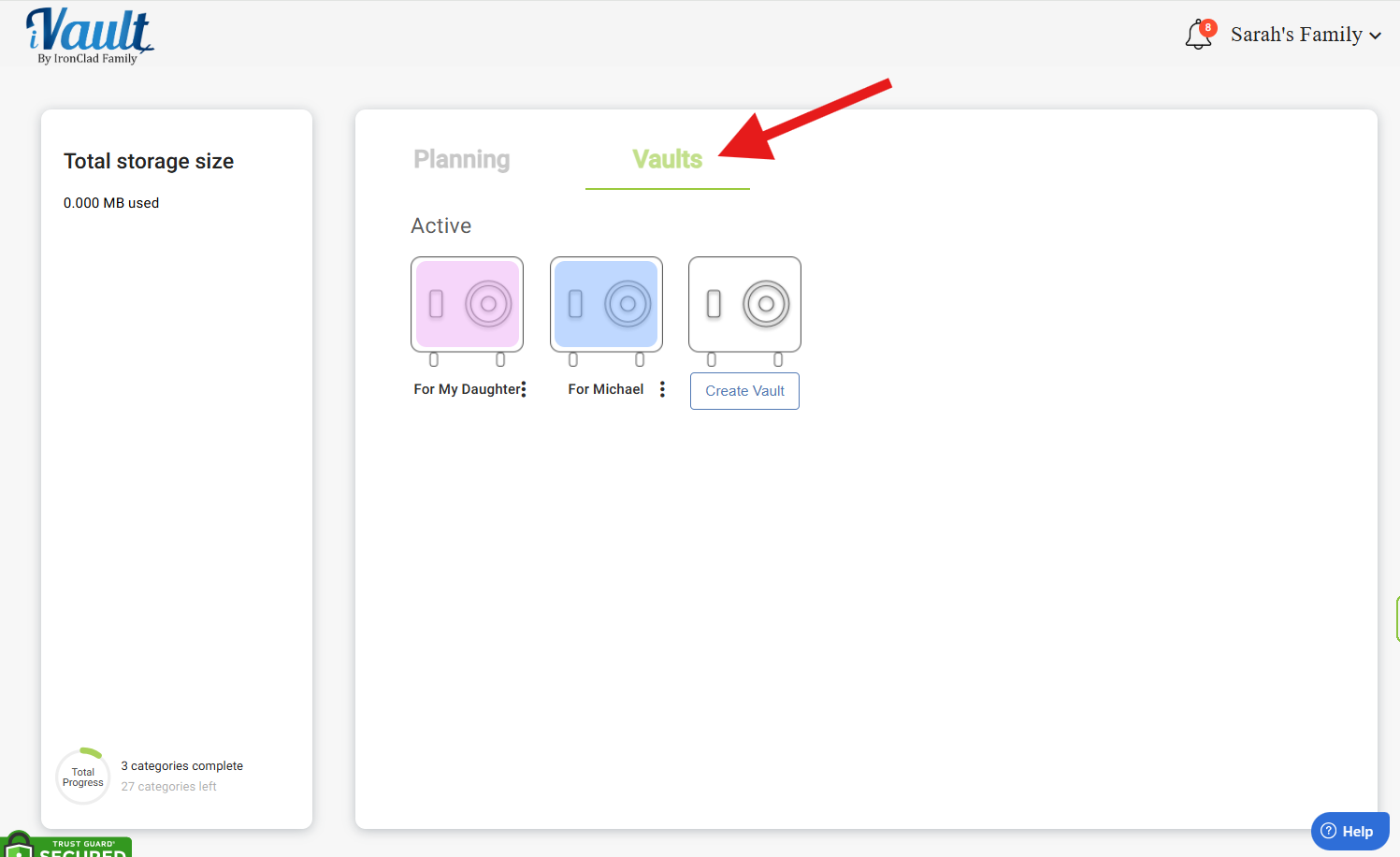
Step 2 — Select or create a client vault
- Open an existing vault, or click Create Vault to set up a new one.
- Inside, the left settings panel gives you Set Delivery Timing and Recipients at the top, then Details and Activity below. A Limited Preview toggle sits between them.
Set Delivery Timing
Open Set Delivery Timing to choose how and when the vault delivers.
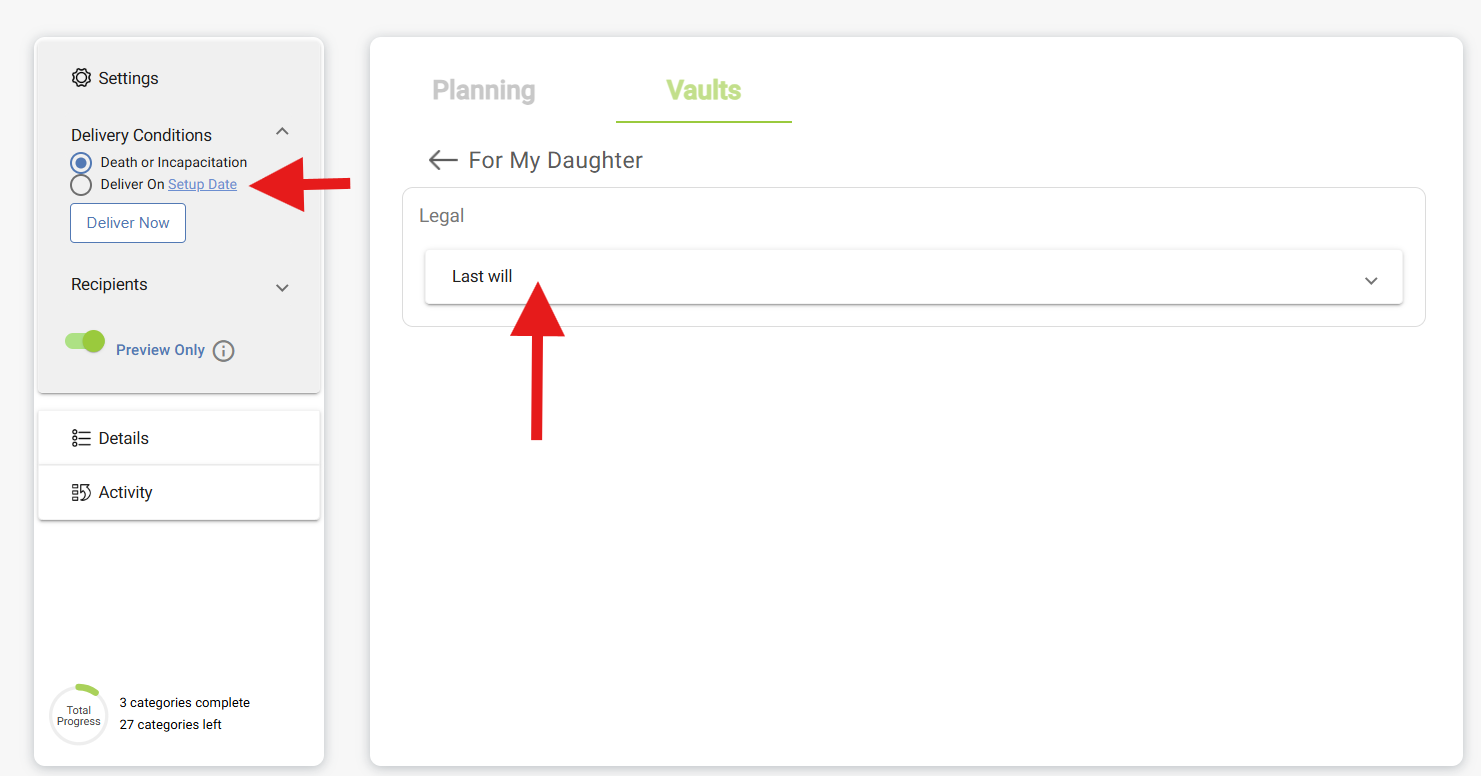
You can deliver a vault:
- Upon Death or Incapacitation of the vault owner
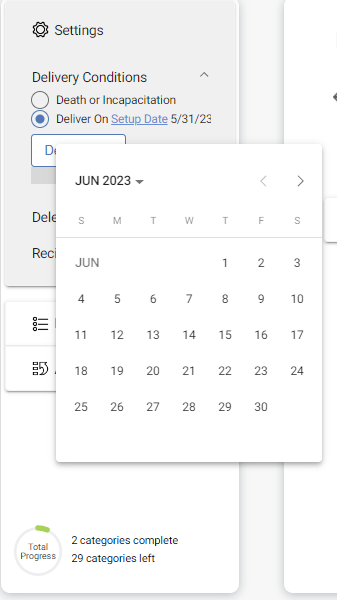
- On a specific Date
- Manually via Deliver Now
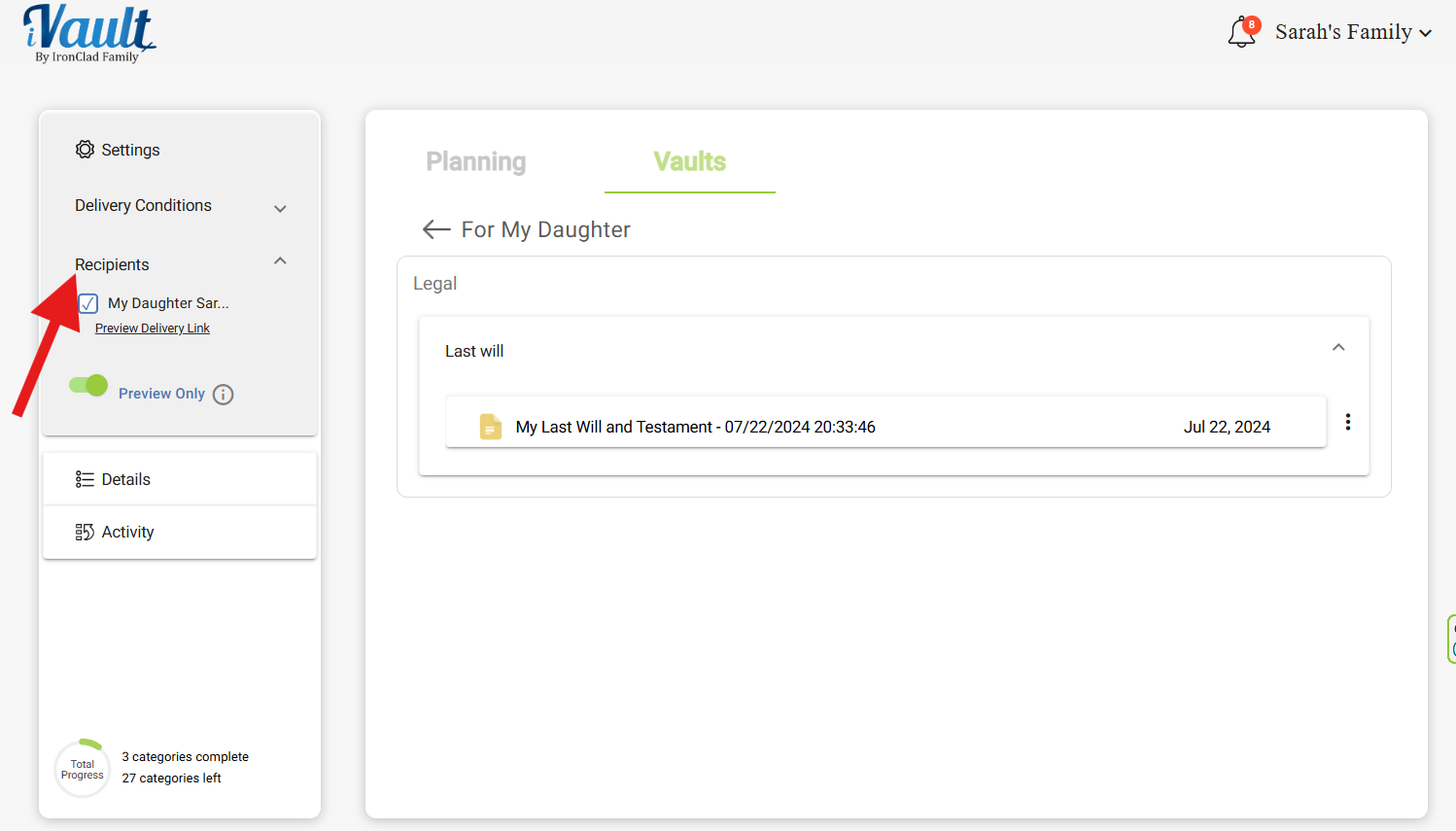
Assigning recipients
Open the Recipients tab to select who receives the vault. Each vault supports up to 4 recipients. For larger families, use separate vaults for different recipient groups.
When sharing a preview before delivery, choose one of two modes:
- File names only — recipients see what exists but cannot open files
- Full content — recipients can view the actual contents
The preview link does not expire. Recipients are read-only in both modes.
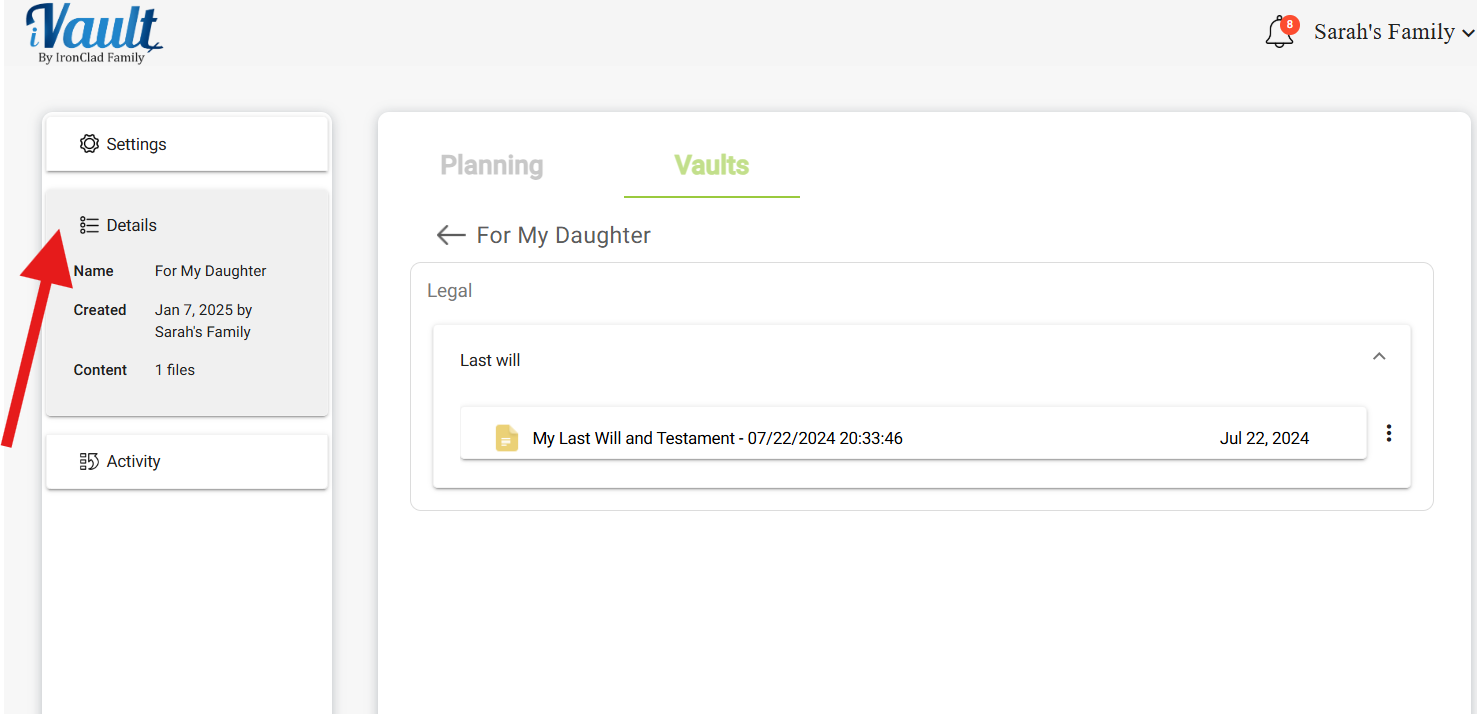
Details
The Details tab shows the vault name, its creation date, and every record assigned to it, grouped by category. Review this before completing delivery — it's your last chance to confirm the vault actually contains what the client expects their recipients to receive, and that nothing's there that shouldn't be.
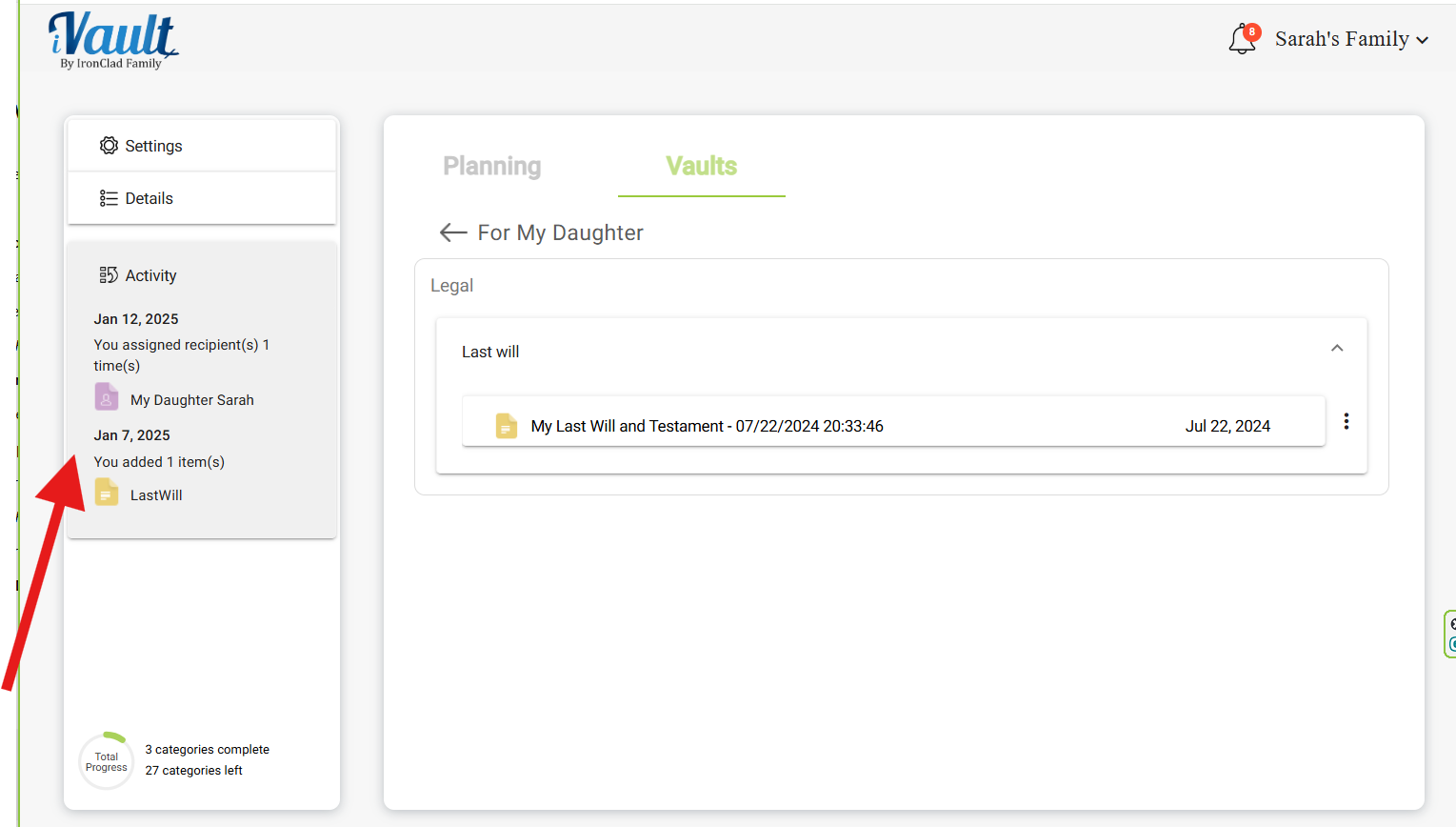
Activity
The Activity panel shows every recent change to the vault — records added or edited, documents attached or replaced, recipient and delivery changes. This audit trail helps verify everything is correct before delivery.
What recipients see after delivery
- Before delivery (if preview shared): file names only or full content, depending on the mode you selected. The preview link does not expire.
- Upon delivery: a secure, permanent, read-only version of the vault.
- No editing or commenting: delivered content is locked to preserve its authenticity.
- Timestamps visible: recipients always see exactly when the vault was delivered.
Advisor best practices before delivering
- Confirm records are assigned to this vault, and open Details to see them — the step most likely to be missed.
- Review each record with your client to ensure its fields are accurate and any attachment is the most recent version.
- Group vaults by audience, not by document type — the people on a vault see everything in it.
- Confirm every recipient — spouses, children, business partners — against the delivery trigger.
- Use the preview link to let recipients see what's coming without exposing contents early.
- Remind your client: delivered vaults cannot be changed. Frame it as protection, not limitation.
- Update records in place when a will, policy, or instruction changes — edit the record and replace its document rather than stacking duplicates.
Post-delivery checklist
- ✔ Confirm the client understands the vault is now permanently locked
- ✔ Verify all intended recipients received access
- ✔ Remind the client they can create new vaults for future updates
- ✔ Save the delivery record in your client notes or CRM
Common issues and fixes
- Vault delivers empty: records were created but never assigned to it. Assign them, confirm in Details, then deliver.
- Client doesn't want to decide now: set a minimal configuration and schedule a follow-up in 30 days.
- Recipient contact info is incomplete: fix recipient data first — delivery depends on it.
- Client has multiple households or a blended family: confirm intent carefully, use separate vaults for different recipient groups (max 4 each), and document the choices.
Related Articles:
Was this article helpful?
That’s Great!
Thank you for your feedback
Sorry! We couldn't be helpful
Thank you for your feedback
Feedback sent
We appreciate your effort and will try to fix the article