The AI Assistant is built into the dashboard. It is designed to answer “how do I…?” and “where do I…?” questions while you work.
Where to find the AI Assistant
- Look in the bottom-right corner for a chat bubble icon.
- Click to open the assistant panel.
- Click again to close it.
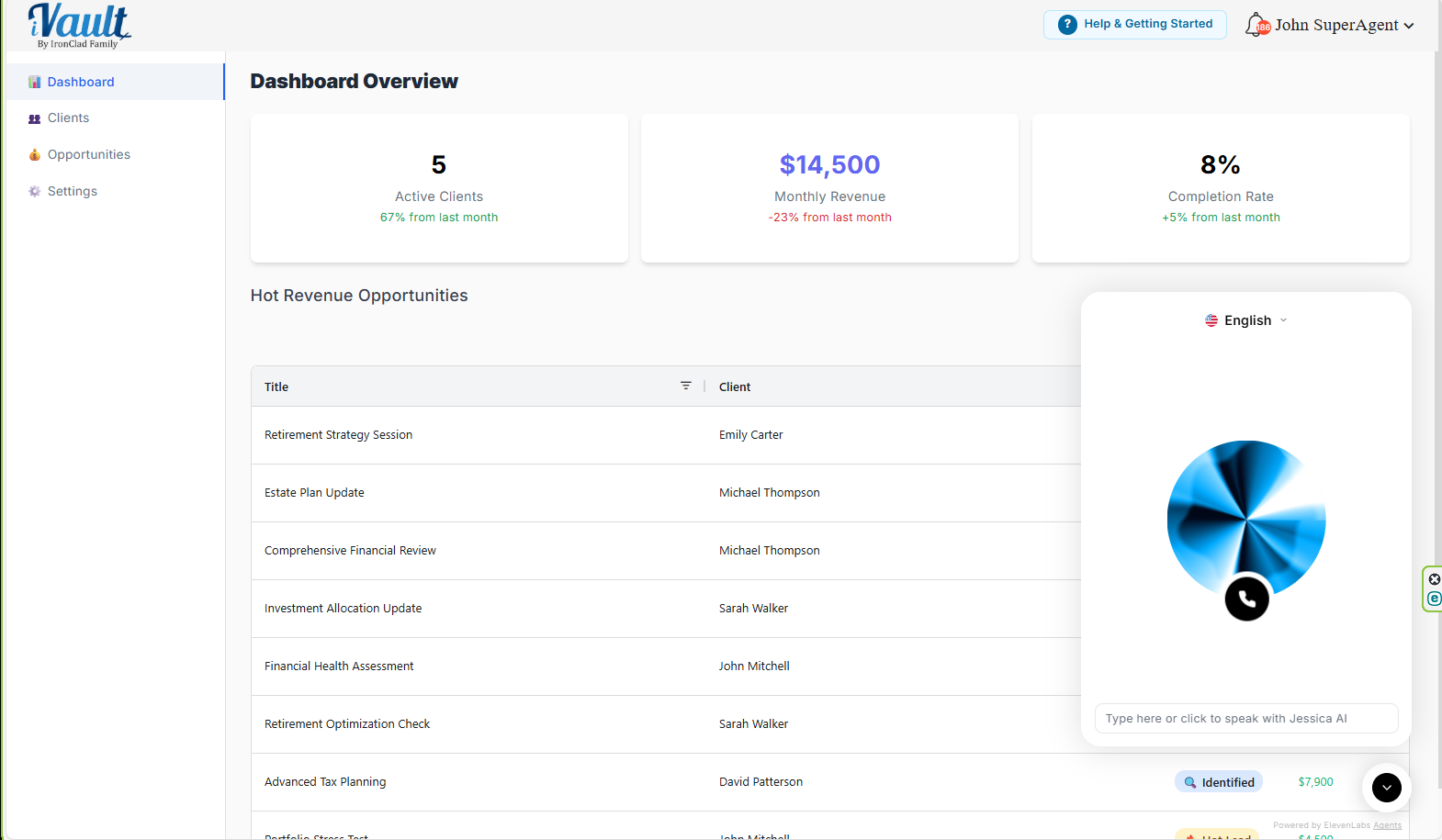
What the AI Assistant is good for
- Finding where a feature lives (navigation help)
- Explaining what you are seeing (labels, statuses, stages)
- Step-by-step instructions (add a client, add an opportunity, manage an opportunity)
Examples of questions to ask
- “How do I add a client?”
- “What is Sample Data Mode?”
- “How do I add an opportunity?”
- “What does Hot Lead mean?”
- “Where do I turn the welcome guide back on?”
What the AI Assistant is not for
- Billing changes or contract questions
- Legal, tax, or compliance advice
- Account access issues (password, login problems)
- Anything that requires changing client data if you are not authorized
If your request is account-specific or sensitive, contact support.
Troubleshooting
- The assistant won’t open: refresh the page and try again. If you use strict browser/privacy plugins, test in a standard browser session.
- The assistant opens but seems unresponsive: confirm your internet connection, then refresh. If it continues, contact support.
Was this article helpful?
That’s Great!
Thank you for your feedback
Sorry! We couldn't be helpful
Thank you for your feedback
Feedback sent
We appreciate your effort and will try to fix the article