Adding Recipients to Your Client's Vaults
Recipients are the people who receive a client's vault contents at the appropriate time. Setting them early prevents last-minute confusion and reduces risk during emergencies.
Each vault supports up to 4 recipients. Client accounts include unlimited vaults — so for complex family structures, create separate vaults per recipient group rather than crowding one.
Confirm the client understands the difference between:
• Recipients — the people who receive access to vault contents
• Beneficiaries — the people who receive assets via legal instruments
These are separate lists and they frequently don't match. A client's brother might be the executor receiving the estate vault while their children are the beneficiaries of every account in it. Recipients should reflect the client's real-world intent about who needs to see what, not an assumption that access and inheritance are the same thing.
Decide the vault structure first
Worth a minute before you start adding people, because it's harder to unpick later.
Recipients belong to the vault, not to individual records. Everything assigned to a vault goes to everyone on that vault's recipient list — there's no per-record filtering. So the grouping decision determines what each person can see.
Ask the client: who needs to see what? Then build vaults around the answer. A spouse and adult children in the family vault. Executor and attorney in the estate vault. Emergency contacts and medical information in an emergency vault. Anything sensitive going to one person in a vault of its own.
How to add a recipient
Go to Clients, click the 3 dots next to the client's name, and select Manage vaults. Then follow the steps below.
Step 1 — Open the Recipients section
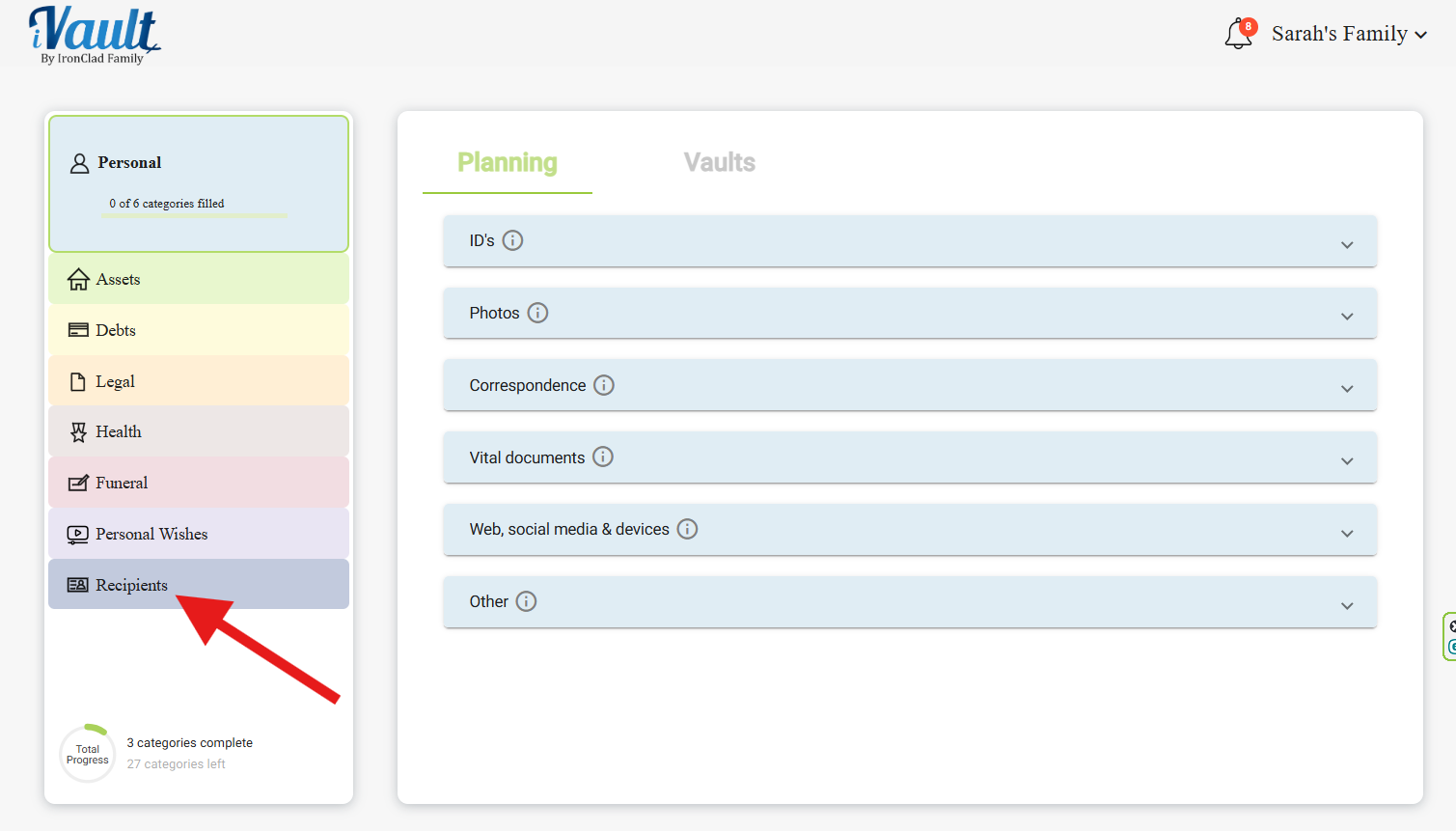
Click Recipients from the left pane in the client's home screen.
Step 2 — Add a new recipient
Click the + Add Recipient button.
Step 3 — Enter contact information
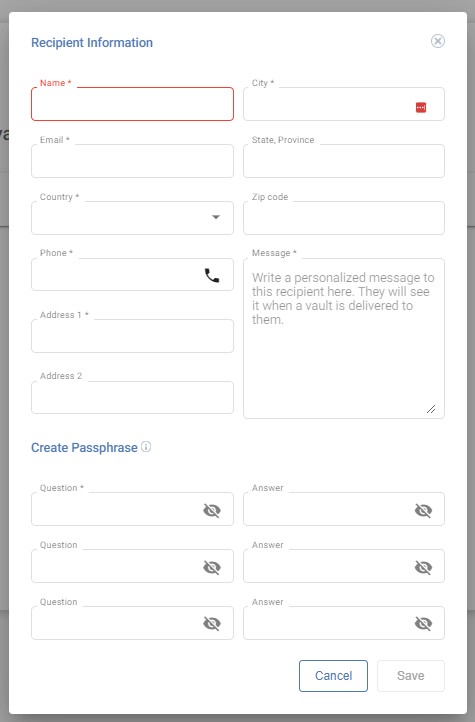
Enter the recipient's full name, email address, and phone number.
Get these right. Wrong contact details are the number one cause of delivery failure, and the failure surfaces at the worst possible moment — when the vault is releasing and nobody is available to correct it.
Prefer personal email addresses over work ones. A work address disappears the moment someone changes jobs, and these vaults may sit for twenty years before they're needed.
Step 4 — Write a personalized greeting message
This is the first thing the recipient sees when the vault is delivered and they attempt to retrieve its contents.
Don't write this one for the client. Confirm what they want said — in their words, not yours. This message arrives at a moment of real grief, and a recipient can tell the difference between something their parent wrote and something an advisor drafted on their behalf. If the client is stuck, ask what they'd want the person to know, and write down what they say.
Step 5 — Create passphrases
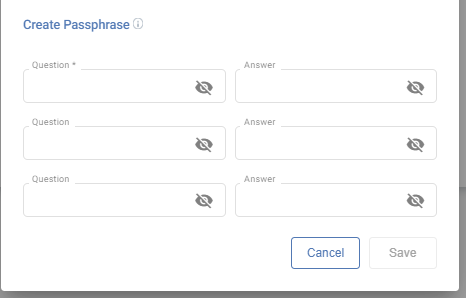
Create each recipient's set of passphrases. Choose the minimum number the recipient must answer to unlock the vault at delivery, then type a question in the Question field with its required answer.
Guide the client toward questions with stable, unambiguous answers. “What street did we grow up on?” works. “What's my favorite restaurant?” doesn't — favorites change, and so does the recipient's memory of them. Watch out for answers with formatting ambiguity too: a date could be entered three ways, and a full name might or might not include a middle initial.
Even if the recipient only needs to answer one or two to unlock the vault, fill in all three. The extras are backups for the day someone misremembers an answer under stress — which is exactly the condition they'll be in.
Step 6 — Save and repeat
Click Save, then repeat for each additional recipient. Each vault supports up to 4.
Step 7 — Check what they'll actually receive
Adding recipients to a vault does nothing on its own. Records have to be assigned to that vault before anyone receives anything — and a vault with four carefully configured recipients and no records assigned delivers an empty package.
Before you close the session:
- Open the vault's Details tab and confirm the records you expect are actually in there
- Scan the client's record cards for any reading “Not assigned to any vault yet”
- Use the ⋮ menu › Assign to vault on anything that's been missed
This is the single most common gap in client vaults, and it's invisible unless you look for it deliberately.
Recipients cannot add, edit, delete, or change vault content at any time — before or after delivery. This is our promise that your client's wishes are never tampered with.
Before delivery, recipients can preview file names only or full contents, depending on the mode chosen when sharing the preview link. After delivery, they view content securely but cannot change anything.
Only the vault owner can edit content, and only before delivery. Once delivered, the vault is permanently locked exactly as the client intended. We are on their side.
Advisor best practices
- Add at least one primary recipient and one backup where appropriate.
- Use accurate personal email and phone — wrong contact details are the #1 cause of delivery failure.
- Encourage the client to tell each recipient they've been named. A vault arriving unannounced from a company they've never heard of looks like phishing, and gets deleted.
- For clients with more than 4 intended recipients, create separate vaults per group.
- Revisit recipient contact details at every annual review. Emails and phone numbers go stale faster than anything else in the vault.
Common issues and fixes
- Client is unsure who to add: schedule a 10-minute recipients clarification call before proceeding. Don't guess on the client's behalf.
- Wrong recipient added: remove the record and add the correct one. Don't leave “maybe” recipients in place.
- Recipient contact info has changed: update immediately to prevent failed delivery later.
- Client wants one person to see some records but not others: that's two vaults, not one. Recipients apply at the vault level.
- Client hesitates over the passphrase questions: usually a sign they haven't told the recipient about any of this. Worth pausing to have that conversation — it's the one that makes the whole plan work.
Related Articles:
Was this article helpful?
That’s Great!
Thank you for your feedback
Sorry! We couldn't be helpful
Thank you for your feedback
Feedback sent
We appreciate your effort and will try to fix the article